When it comes to productivity, finding a tool that fits seamlessly into your workflow can feel like a never-ending quest. For me, that tool is Apple Reminders. Despite its minimalist interface, it’s incredibly versatile and has become the backbone of my task management system. Here’s how I’ve optimized it for my needs.

This post on Medium
Comment, interact, and support directly.

Inbox: The Catch-All
The Inbox is where everything starts. It’s my “catch-all” list, where I quickly capture ideas, links, to-dos, and anything else that comes to mind. The goal here is simple: capture first, sort later.
On Monday mornings, I process this list by deleting irrelevant items, tagging tasks, and assigning them to the right lists or categories. This ensures nothing slips through the cracks while keeping my main lists clean and focused.
Set Up Siri to Capture Insights on the Go
When I’m out for a walk listening to an audiobook, I often say, “Hey Siri, remind me on XYZ,” to quickly capture a new idea or insight. To ensure these reminders go to the right place, you need to set your default list in Apple Reminders. Here’s how:
On Mac:
- Open the Reminders app.
- Go to the menu bar and click Reminders > Settings (or Preferences).
- Under Default List, select the desired list.
On iPhone or iPad:
- Open the Settings app.
- Scroll down and tap Reminders.
- Under Default List, select the list you want Siri to use for new reminders (e.g., your Inbox).
Now, every time you ask Siri to set a reminder, it will automatically be added to your chosen list. This small tweak ensures your ideas are always captured and easy to process later.
To Do: The All-Purpose List
The “To Do” list serves as a comprehensive repository for tasks that aren’t tied to a specific day or priority. This list includes everything that happens in shared lists or tasks assigned by others, such as a family member’s responsibilities. Here’s how I manage it:
- Not Time-Sensitive: Tasks here don’t have strict deadlines or aren’t tied to a specific day.
- Includes Overdue Tasks: If something slips through the cracks in other lists, it still appears here for review.
- Shared Responsibilities: It’s a place for tasks that I can’t control, such as those managed collaboratively with family.
This SmartList acts as a safety net, ensuring that no task goes unnoticed while keeping the focus on what’s actionable when needed.

Folders: Minimalist by Design
I follow the PARA system by Tiago Forte to keep my folders simple and intuitive:
- Projects: Short-term initiatives with clear deadlines.
- Areas: Long-term responsibilities and commitments.
- Resources: Reference material.
- Archives: Completed projects or inactive areas.
By sticking to these four categories, I avoid creating unnecessary folders. Instead, I rely on tags to organize tasks in a more flexible and efficient way. You can also see the Daily Focus, more about that later.
Chris from the future: To keep things clean, Clients should be categorized under Areas. Unfortunately, Reminders doesn’t allow nested folders. Alternatively, you can separate Smart Lists using colors or icons. This is how I plan to handle it moving forward.

Tags: The Secret to Staying Organized
Tags are the backbone of my setup. Instead of creating fixed lists, I use tags like #blog, #office, #personal, and #tool to categorize tasks. This approach offers two major benefits:
- Flexibility: Tasks can belong to multiple categories (and so SmartLists) simultaneously.
- SmartLists: Tags allow me to create dynamic lists that automatically pull in relevant tasks, eliminating the need for manual sorting.

SmartLists: Automation at Its Best
Most of my lists are SmartLists driven by tags. For example, a SmartList for #blog pulls in everything tagged accordingly, making it easy to manage. For tasks that don’t require collaboration, SmartLists let me filter and focus on specific areas without cluttering my workflow.
Unfortunately you can’t share SmartLists so I have some normal list with tasks not sorted under Planner to share with family and friends.

Daily Focus: Priority Made Simple
At the heart of my system is the Daily Focus folder, which helps me prioritize tasks. It’s divided into four SmartLists:

- Top Priority: Must-do tasks for today.
- Medium Priority: Important tasks that can wait if needed.
- Low Priority: Non-urgent tasks.
- No Priority: Tasks without a real deadline, but nice to have done.
I keep the Folder with this lists minimized to have them all at a glance. I also have a dedicated “Household” list here for shared responsibilities. This is a SmartList filtered to my own tasks (I use the tag #chris in the shared list to filter). As mentioned you can’t share SmartLists.
This structured approach keeps me focused on what truly matters each day.

Planner: A Kanban Board for Tasks
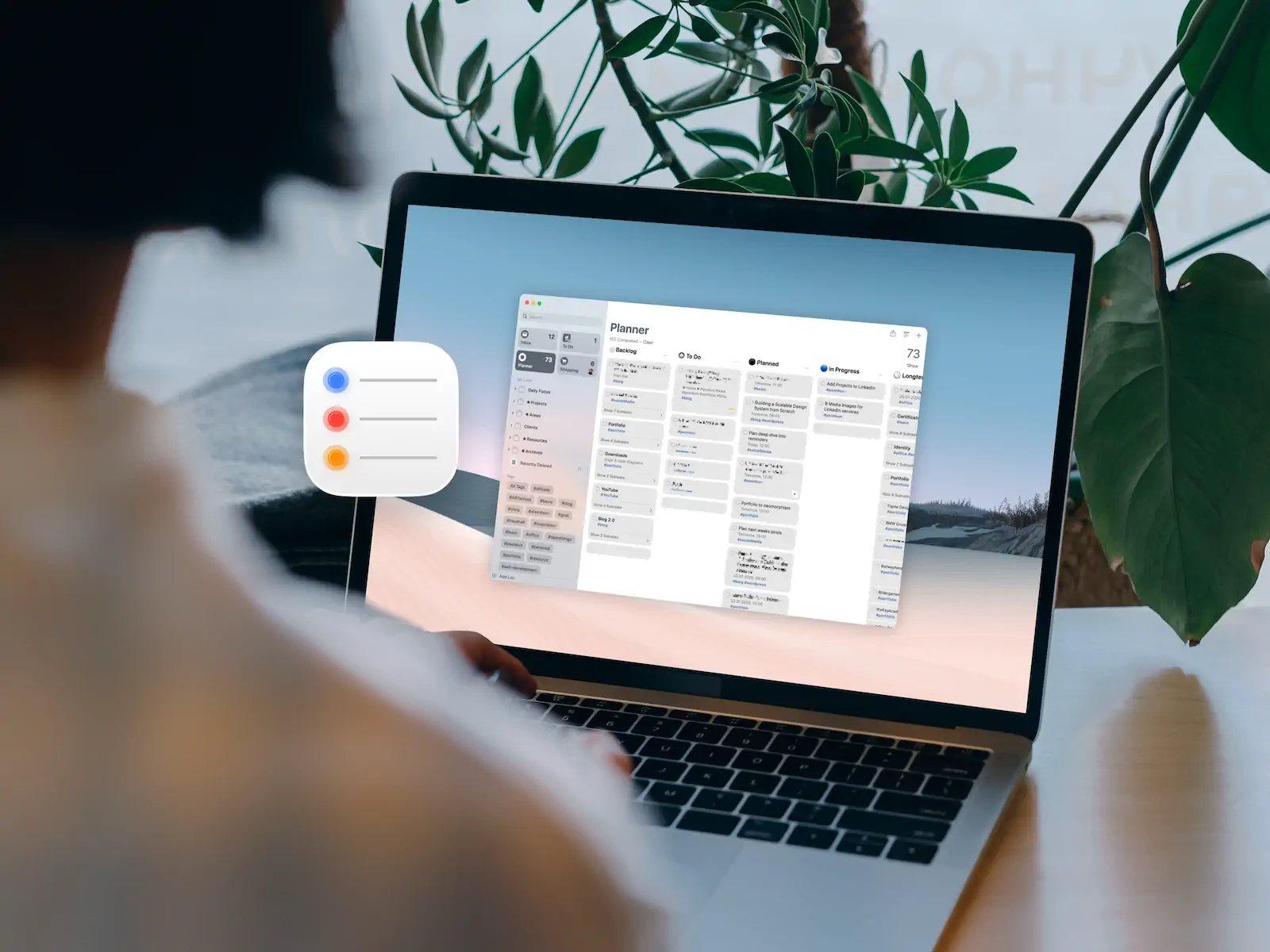
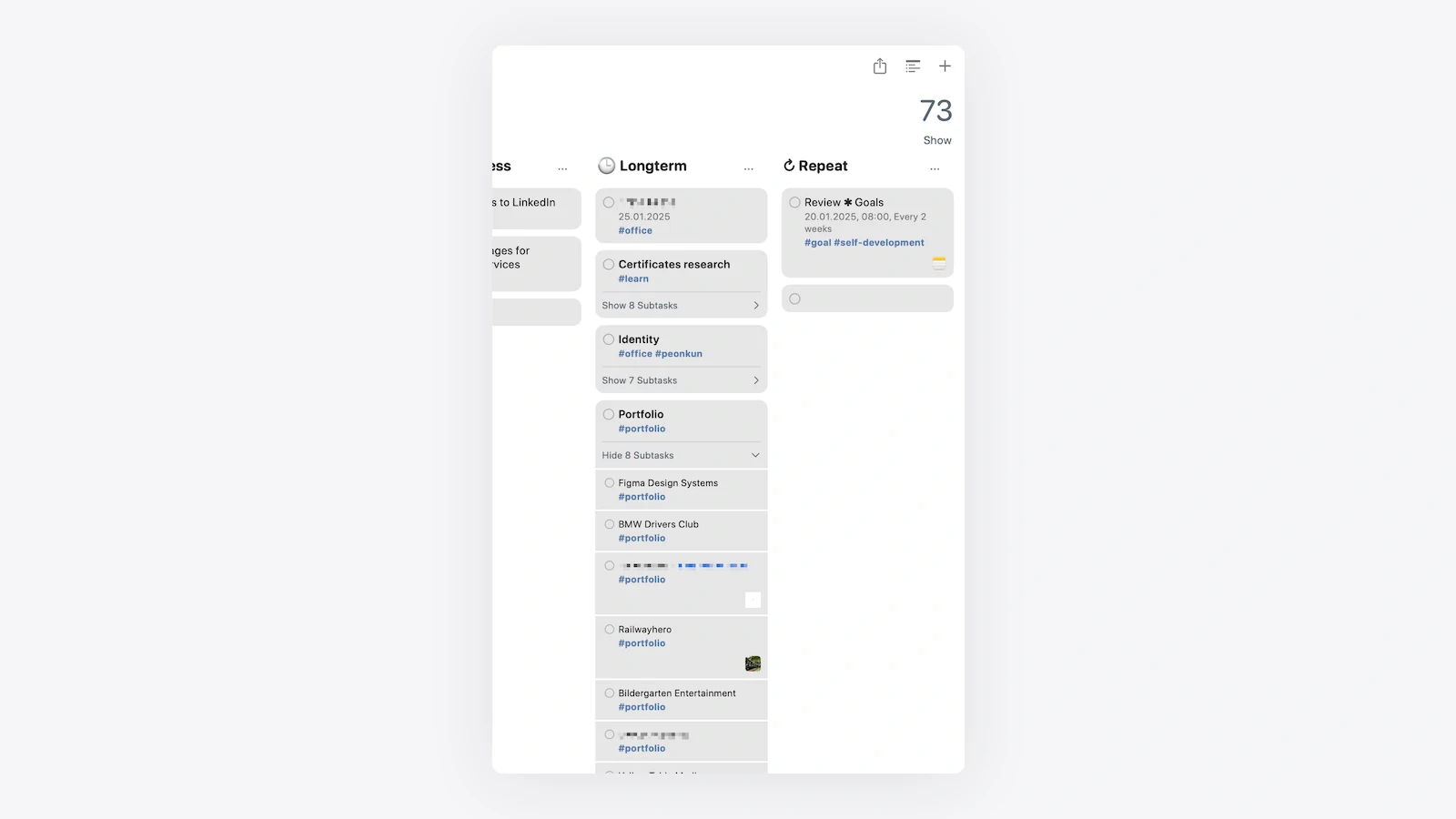
My Planner functions as a Kanban board within Apple Reminders. It’s a normal list and divided into the following columns:
- Backlog: Ideas and tasks that aren’t yet actionable.
- To Do: Upcoming tasks without set dates.
- Planned: Tasks with specific deadlines.
- In Progress: What I’m actively working on.
- Longterm: Future goals or low-priority tasks.
- Repeat: Recurring tasks.
This visual approach makes it easy to track the status of every task at a glance.
Workflow: From Inbox to Planner
Here’s how my general workflow looks step-by-step:
- Capture in Inbox: Any new idea, task, or link goes into the Inbox for initial collection.
- Tagging: Once captured, I tag each task with relevant labels (e.g., #blog, #office, #personal).
- Move to Planner: Tagged tasks are sorted into my Planner, organized by the Kanban columns (Backlog, To Do, Planned, etc.).
- Drag Tasks Between Columns: As tasks progress, I manually drag them from one column to another (e.g., from To Do to In Progress).
- Automatic SmartLists: Thanks to tags, tasks also show up in their respective SmartLists for easy filtering and visibility.
This streamlined process ensures I always know what needs my attention and where to find it.
How to Enable the Column View in Apple Reminders
If you want to use the column view in Apple Reminders, here’s how you can enable it on Mac, iPhone, and iPad:
On Mac:
- Open the Reminders app.
- Select a list in the sidebar. If the sidebar is hidden, choose View > Show Sidebar from the menu.
- Choose View > as Columns from the menu bar. If you want to switch back, select View > as List.
- Note: Column view is only available for lists with sections.
- Tasks outside of a section will appear in a column titled “Others.”
- This feature is not available for Smart Lists or groups of lists.
On iPhone or iPad:
- Open the Reminders app and tap on a list with sections.
- Tap the ellipsis (…) in the top-right corner.
- Select View as Columns. To revert, choose View as List.
- Similar to Mac, the column view requires the list to have sections to display properly.
By enabling the column view, you can transform your lists into a visual workflow that mirrors a Kanban board, making it easier to manage and organize tasks across different sections.
Calendar Integration: Time Blocking Made Easy
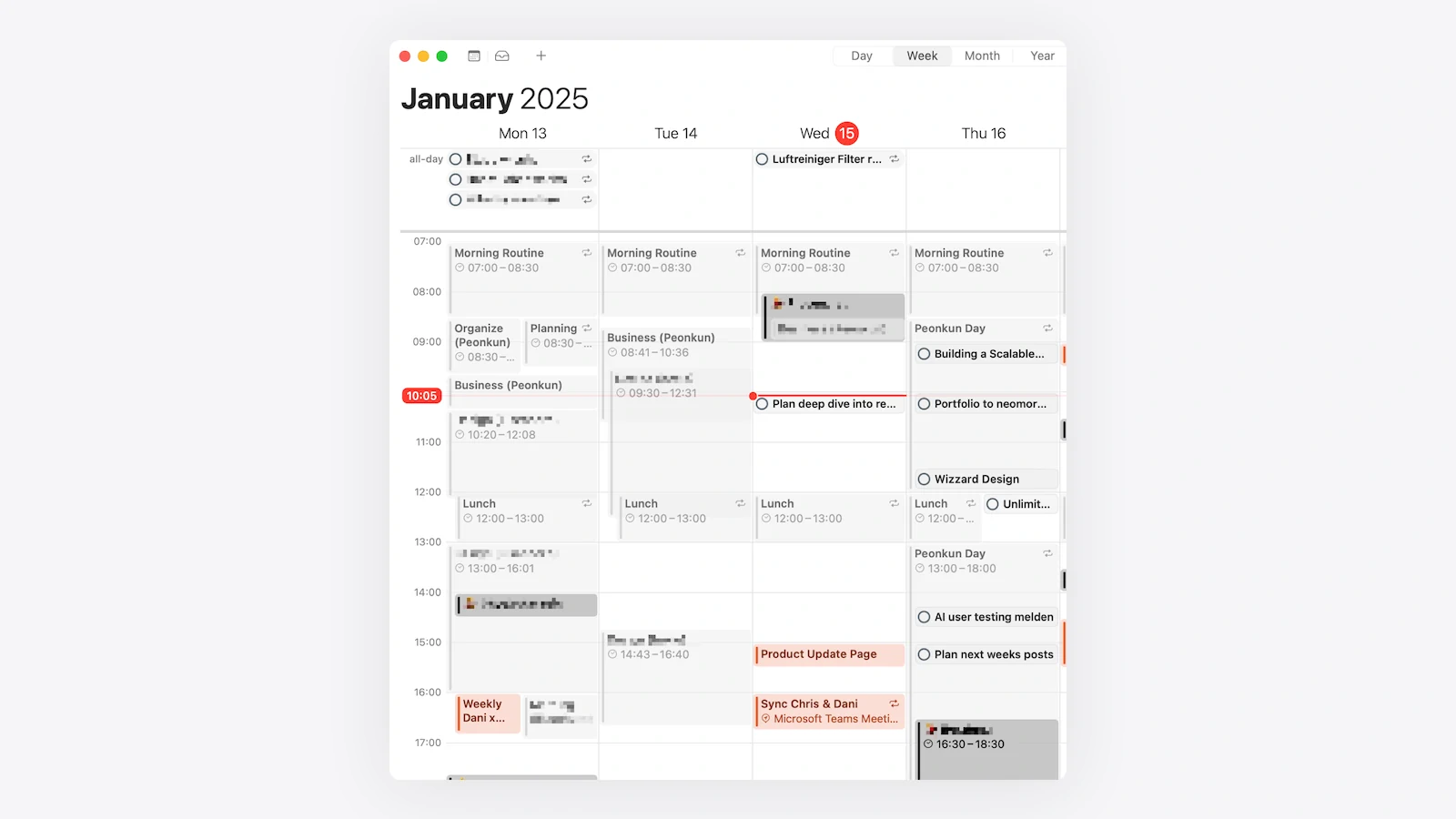
During my weekly review, I assign dates and times to tasks, syncing them with Apple Calendar. This ensures that my tasks are not only planned but also realistically distributed throughout my week. Seeing tasks alongside meetings and events helps me balance my workload and avoid overcommitting.

Widgets: Priority at a Glance
I’ve added widgets for my four priority lists (Top, Medium, Low, and No Priority) on all my devices. This gives me instant access to what matters most without having to open the Reminders app. It’s a simple yet effective way to stay on track.
Why Apple Reminders Works for Me
Apple Reminders might not be the flashiest task management tool, but its simplicity and flexibility make it incredibly powerful. Here’s why it’s my go-to:
- Free and Syncs Across Devices: Seamlessly integrates with the Apple ecosystem.
- Customizable Workflows: Tags and SmartLists make it easy to tailor the app to your needs.
- Visual Satisfaction: Checking off completed tasks is highly motivating.
- Integration: Works beautifully with Apple Calendar, Notes, and Siri.
Takeaways
By keeping folders lean, heavily utilizing tags, and integrating SmartLists, Kanban-style planning, and calendar syncing, I’ve turned Apple Reminders into a productivity powerhouse. Its simplicity hides a surprising depth that can adapt to both basic and complex workflows.